


Manual
Level Box
Version 0.3.1 · Adrestia Audio · adrestia-audio.com
Level Box gets a track to the right level in one click. It measures the signal, works out the gain it would take to hit the target you chose, and commits that gain when you press SET. Nothing else happens to the audio: no EQ, no compression, no coloration. One switch, CONSOLE, adds the output stage of a classic console channel for those who want it.
Free. AU and VST3 for macOS 11 and later, Apple Silicon and Intel. No account, no dongle, no subscription.
At a glance
- Insert Level Box first on the track, before your compressors and saturators.
- Pick RMS or PEAK, and a target.
- Play the loudest part of the track. The lamp goes from Measuring to Settling to Stable.
- Press SET. The suggested gain becomes the committed gain, and the track now sits at the target.
That is the whole job. RESET clears everything and you can measure again.
Installing
Requirements
- macOS 11 (Big Sur) or later, Apple Silicon or Intel (one universal installer)
- A host that loads Audio Units or VST3: Logic Pro, Ableton Live, Cubase, Reaper, Studio One, Bitwig, and others
Steps
- Download the installer from adrestia-audio.com/plugins/level-box.
- Open it. It is signed and notarized by Apple, so there is no Gatekeeper workaround.
- It installs to
/Library/Audio/Plug-Ins/Componentsand/Library/Audio/Plug-Ins/VST3. - Restart your DAW, or rescan plugins. In Logic: Preferences → Plug-in Manager → Reset & Rescan Selection.
- Find it under Adrestia Audio → Level Box.
Updating: run the newer installer over the old one. Sessions keep loading; settings carry over.
Uninstalling: drag the two plugin files to the Trash.
The panel
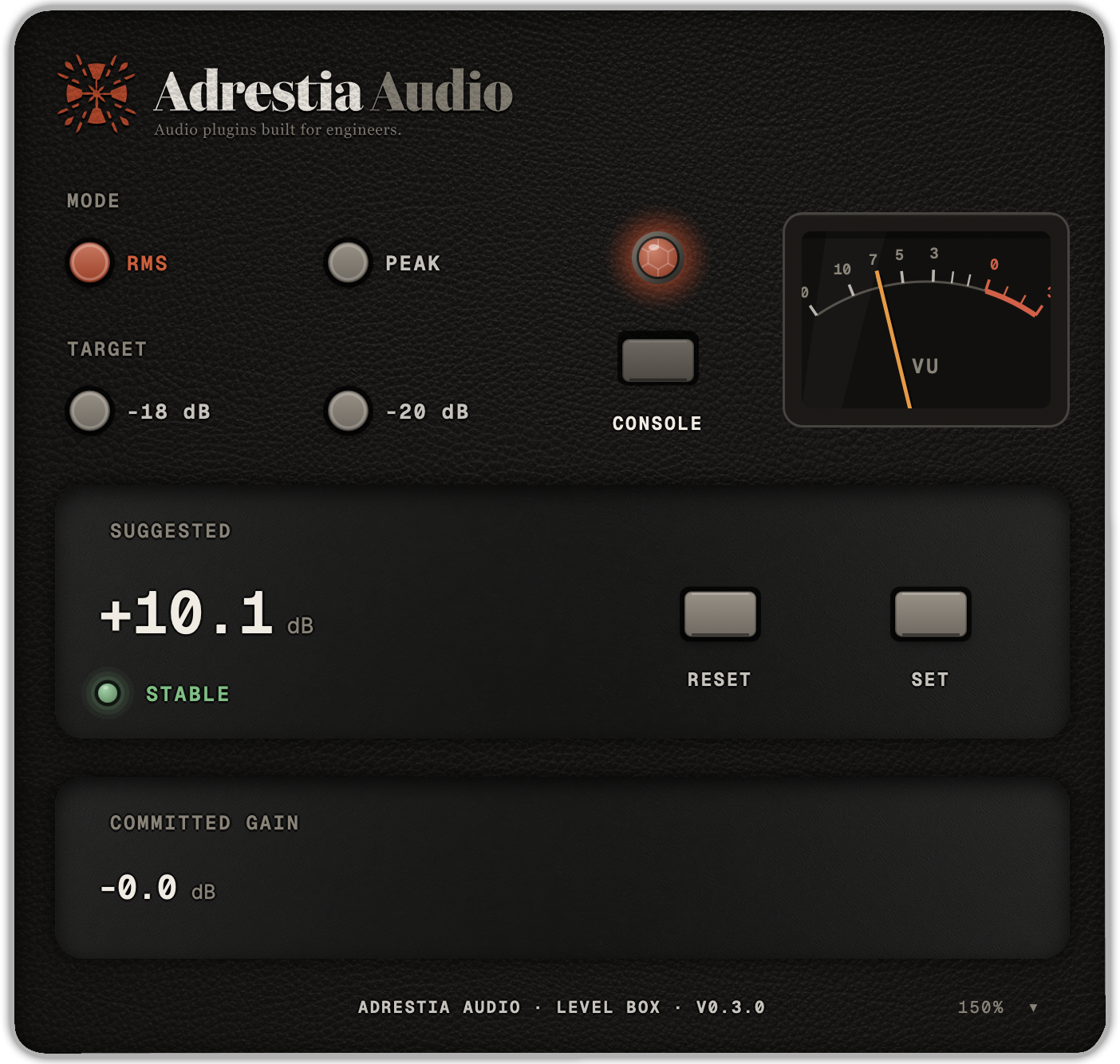
- Mode keys: RMS or PEAK, the way the level is measured.
- Target keys: the level to aim for. −18 and −20 dBFS for RMS, −10 and −6 dBFS for PEAK.
- Readouts: the suggested gain, with the lamp beside it, and the committed gain, each in its own well. A clip warning shows if the committed gain would push peaks over 0 dBFS.
- The lamp: Measuring while it listens, Settling as the reading closes in, Stable when it is ready for SET, Committed after.
- SET and RESET: the two keys that do the work.
- CONSOLE: a jewel lamp and key beside the Mode and Target keys. Off by default.
- VU meter: what leaves the plugin after the committed gain, with real VU ballistics, 0 VU at −18 dBFS.
- Footer: the version and a size badge. Click the badge for window-size presets, or drag the window's corner.
Measuring
RMS reads the average level and suits most sources: vocals, guitars, keys, busses. PEAK reads the loudest sample and suits drums and anything spiky, where the average says little about how hot it runs.
Level Box needs to hear the loudest part of the track. Play the chorus, the big fill, the section that worries you. The lamp says Stable once the reading has stopped moving; until then, SET waits.
The committed gain is a fixed offset. It does not ride the level and it does not react to the music. If you edit the track later and the level changes, press RESET and measure again.
Controls
| Control | What it does |
|---|---|
| RMS / PEAK | How the level is measured |
| Target | The level to hit: −18 or −20 dBFS RMS, −10 or −6 dBFS PEAK |
| SET | Commits the suggested gain and freezes the measurement |
| RESET | Returns the committed gain to 0 dB and starts a fresh measurement |
| CONSOLE | Runs the committed level through a console output stage. Off by default |
| Size badge | Window size, 100 to 200 % |
The committed gain can be automated and is saved with the session. Your host's bypass button fades the unit out and in, click-free.
CONSOLE
With CONSOLE off, Level Box is a gain change and nothing else. The output is the input times the committed gain, exactly.
With CONSOLE on, the committed level runs through the output stage of a classic console channel: a class-A line amplifier driving a steel-core transformer, modelled as the circuit and checked against a real channel on our bench. There is no drive control. The target you picked is how hard the stage works. At the RMS targets it is close to transparent, as the hardware is; at the PEAK targets the transformer starts to work on the low end. It is unity gain, so the level leaving the plugin is the level you committed, and the switch is click-free.
It is not the same thing as Saturation Box's transformer. That is an effect you drive as far as you like. This is the stage a hardware Level Box would have, and it stays out of the way at normal levels.
Working with it
Every track, before you mix. Plugins sound best at the level they were designed for. Too hot and you get distortion you did not ask for; too quiet and the detail sinks into the noise. Level Box on every track, set once, means your compressors, EQs and saturators all see what they expect.
Which target. −18 dBFS RMS is the usual operating level and the right place to start. −20 for dense material that reads hot. For drums and percussion, PEAK at −10 keeps the transients clear of the top; −6 if you want them hotter into the next stage.
Gain, not loudness. Level Box sets the level into the chain, not the balance of the mix. Set every track to target, then mix with the faders.
CONSOLE on a whole mix. Leave it off while you set levels, then turn it on across the tracks you want a little weight on. At operating level it is subtle by design.
Questions
Is it really free? Yes. Your email gets you the download and release announcements, nothing else; one-click unsubscribe.
Does it touch my audio? Only when you press SET, and then only as a single static gain. With CONSOLE off the output is bit-identical to the input times the gain.
Does it add latency? No. There is no oversampling and nothing to report, with CONSOLE on or off.
Why does SET stay grey? The reading has not settled. Play the loudest part of the track a little longer, or play it again.
Windows? Not yet. Write to hello@adrestia-audio.com.
Something is wrong. Write to hello@adrestia-audio.com.
Terms of use
Level Box is provided as is, without warranty of any kind. Audio software can clip, crash, feed back, or otherwise behave in ways you didn't plan for; you are responsible for your levels, your monitors, your hearing, and your session backups. To the fullest extent allowed by law, Adrestia Audio is not liable for any damage, loss of work, or other harm that results from using it.
It is free to use for any music project, personal or commercial. Please don't redistribute the installer, resell it, or strip the branding.
Downloading asks for an email address, used only for release announcements, with a one-click unsubscribe in every message.
The full terms and the privacy policy are at adrestia-audio.com/terms and adrestia-audio.com/privacy. Questions: hello@adrestia-audio.com.
© 2026 Adrestia Audio. All rights reserved.